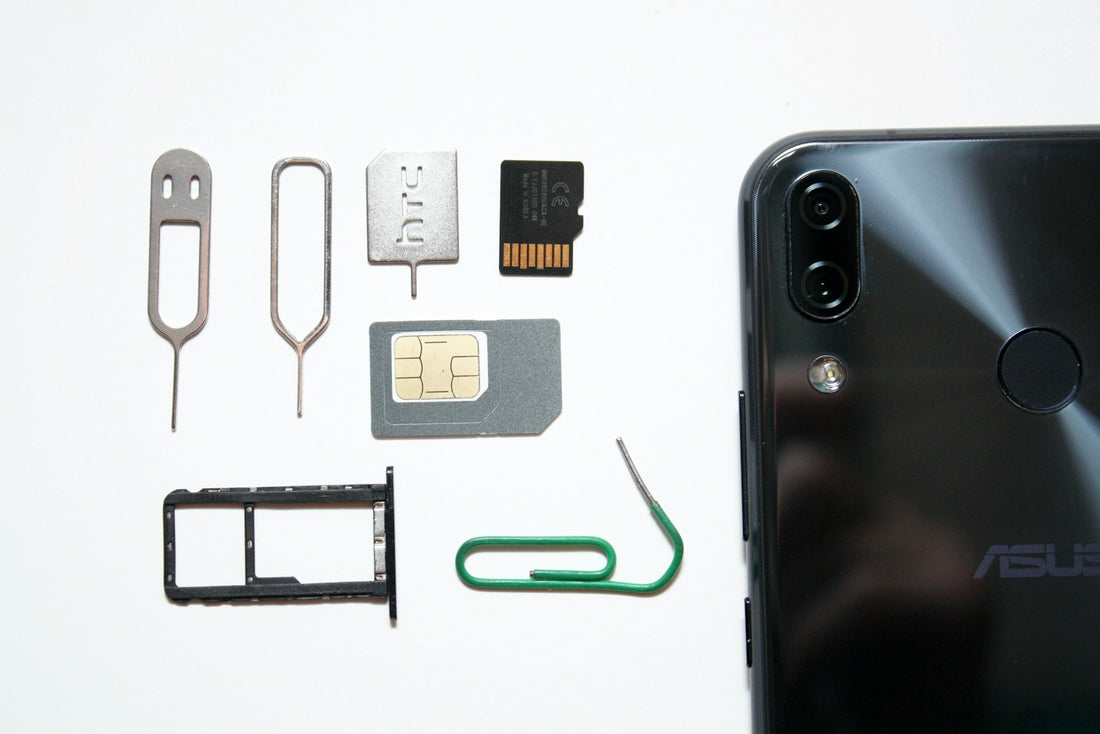
Quick answer: turn Airplane Mode on and off, restart the phone, check your network’s status page for outages, then take out the SIM, check it and put it back in.
1. Is it the network?
Check your network’s service-status page or app, or ask someone on the same network nearby. Outages and local mast work are common, and some buildings have very weak signal.
2. Quick fixes
- Turn Airplane Mode on for 10 seconds, then off.
- Restart the phone.
- Update the phone – on iPhone, also check for a carrier settings update in Settings → General → About (a message pops up if one is available).
- Make sure mobile data / your SIM line is turned on, and that the right line is chosen if you use two SIMs or an eSIM.
3. Check the SIM
- Turn the phone off.
- Push the SIM tool (or a straightened paper clip, gently) into the small hole beside the tray. Use only the tray hole – never the microphone holes.
- Check the SIM for scratches or bends, wipe the gold contacts with a dry cloth, and put it back the right way up.
- Turn the phone on. If possible, try your SIM in another phone, and another SIM in yours.
- Your SIM works in another phone, but no SIM works in yours – the phone’s SIM reader or antenna may be faulty.
- Your SIM doesn’t work in any phone – ask your network for a replacement SIM.
4. Reset network settings
Still nothing? Reset network settings (steps in the Wi-Fi guide). This won’t delete your photos or apps.
Phone locked to a network?
If the phone says “SIM not supported” with a new SIM, it may be locked to another network. Your original network can unlock it, usually for free.
Signal problems that start after a drop or water damage are often a loose antenna connection – a quick repair.
 Walk in – no appointment
 Home visit in London
 Post it to us
 Fix it yourself
 Fix it yourself
 Fix it yourself