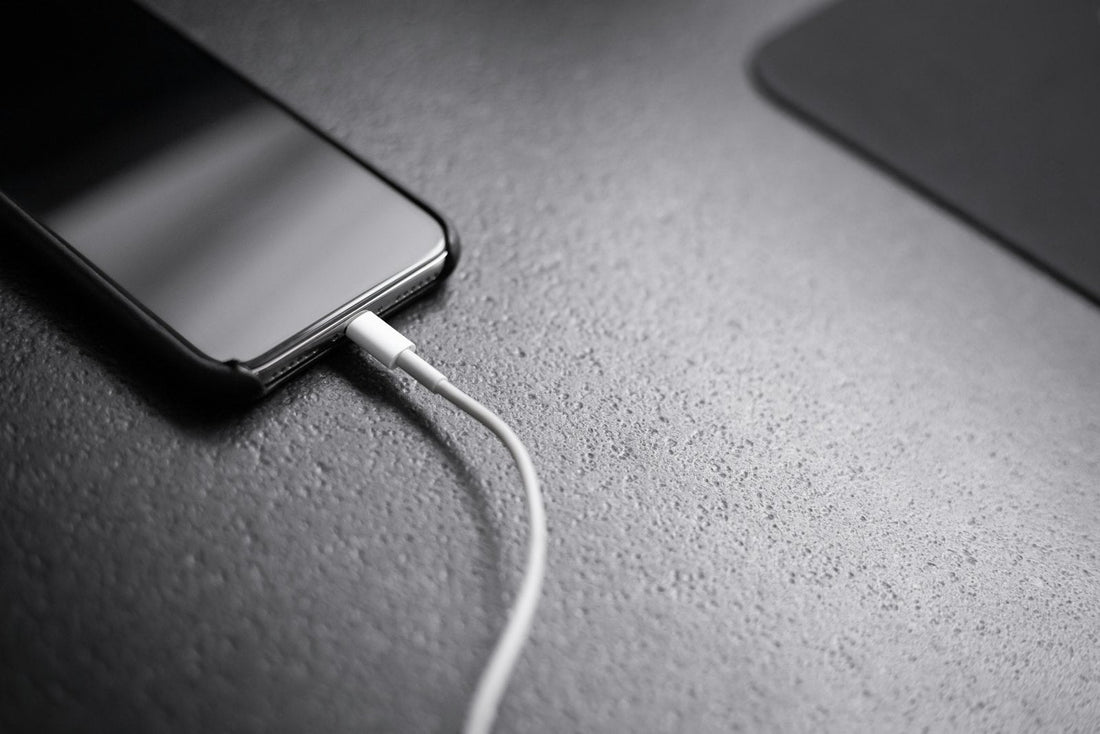
Quick answer: use a good data cable (not a charge-only one) in the car’s main USB port, make sure CarPlay or Android Auto is allowed on your phone, then delete and re-pair the phone in both the car and the phone.
1. Start with the cable and port
- Use a data cable, ideally the one that came with the phone. Many cheap cables only charge.
- Use the car’s main USB port – often marked with a phone or CarPlay symbol. Some ports only charge.
- Clean your phone’s charging port if the cable feels loose – how to clean it safely.
- Try another cable before assuming the car or phone is faulty.
2. Check the phone allows it
iPhone (CarPlay)
- Settings → General → CarPlay – select your car.
- Siri must be on: Settings → Siri.
- Check CarPlay isn’t blocked in Settings → Screen Time → Content & Privacy Restrictions → Allowed Apps.
Android Auto
- Update the Android Auto app and Google Play services.
- Open Settings → Connected devices → Connection preferences → Android Auto (on Samsung, search Settings for “Android Auto”).
- Allow the permissions it asks for.
Wireless connections
- Turn on Wi-Fi and Bluetooth – wireless CarPlay and Android Auto need both.
- Turn off Airplane Mode.
3. Remove and re-pair
- On the phone, forget the car (CarPlay: Settings → General → CarPlay → [car] → Forget This Car; Android Auto: Forget all cars in Android Auto settings).
- On the car screen, delete your phone from its device list.
- Restart the phone and turn the car off and on again.
- Connect again and accept every prompt on the phone and car screen.
Still not connecting?
Check for a car software update with the dealer, and try another phone. If no cable works in your phone but they all work in other phones, the charging port is likely worn – a common repair. Need a reliable cable? See our cables and car chargers.
 Walk in – no appointment
 Home visit in London
 Post it to us
 Fix it yourself
 Fix it yourself
 Fix it yourself