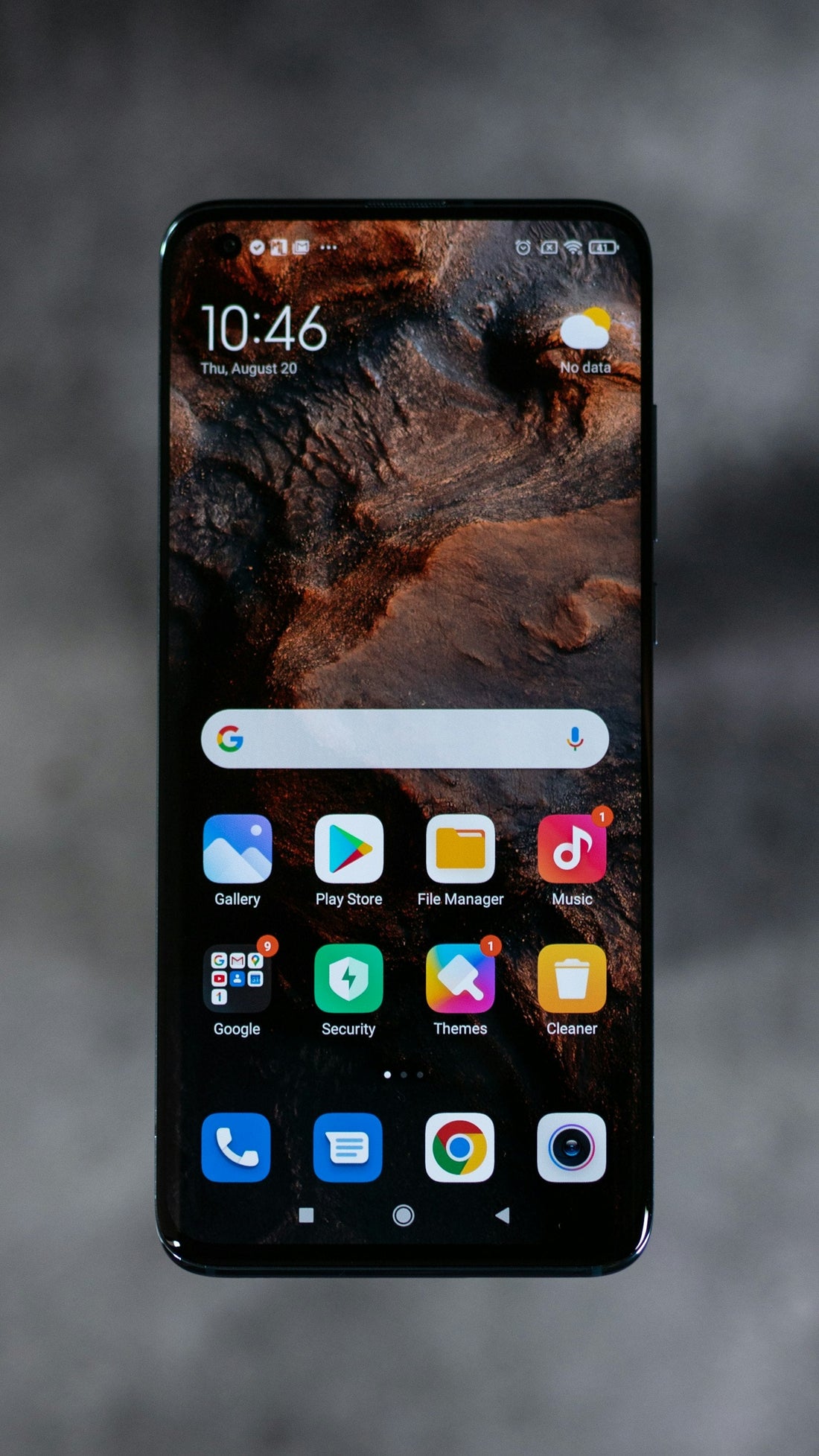
In short: a forgotten passcode can’t be removed without erasing the phone. You can erase it and then restore your data from a backup, using your Apple Account or Google account password. Beware of anyone offering to “unlock” it without erasing.
Why it can’t be bypassed
Modern phones encrypt everything using your passcode. That protects your data if the phone is lost or stolen – and it means nobody, including us, can get into the phone without the passcode. Services that claim otherwise are usually scams or illegal.
Try these first
- Recent iPhones let you use your previous passcode for 72 hours after changing it – look for Forgot Passcode? then Enter Previous Passcode.
- Samsung phones with Remote unlock turned on can be unlocked from samsungfind.samsung.com using your Samsung account.
Erase and restore
iPhone
After several wrong attempts, tap Forgot Passcode? (iOS 17 and later) and follow the steps to reset with your Apple Account password. Or use recovery mode with a computer and choose Restore.
Samsung
Use samsungfind.samsung.com to erase it, or factory reset in recovery mode.
Google Pixel
Erase it through Google’s Find Hub (google.com/android/find), or factory reset in recovery mode.
After erasing, you’ll need your Apple Account or Google account password to use the phone again. If you can’t remember those, recover them first on another device – account recovery can take several days.
Can I keep my photos?
Only if they were backed up to iCloud, Google Photos, Samsung Cloud or a computer. After erasing, restore from that backup during set-up.
Bought a second-hand phone that’s locked?
If a phone is locked to someone else’s account, only the original owner can remove it. Contact the seller. We test and unlock every pre-owned phone we sell, so this never happens with ours.
 Walk in – no appointment
 Home visit in London
 Post it to us
 Fix it yourself
 Fix it yourself
 Fix it yourself