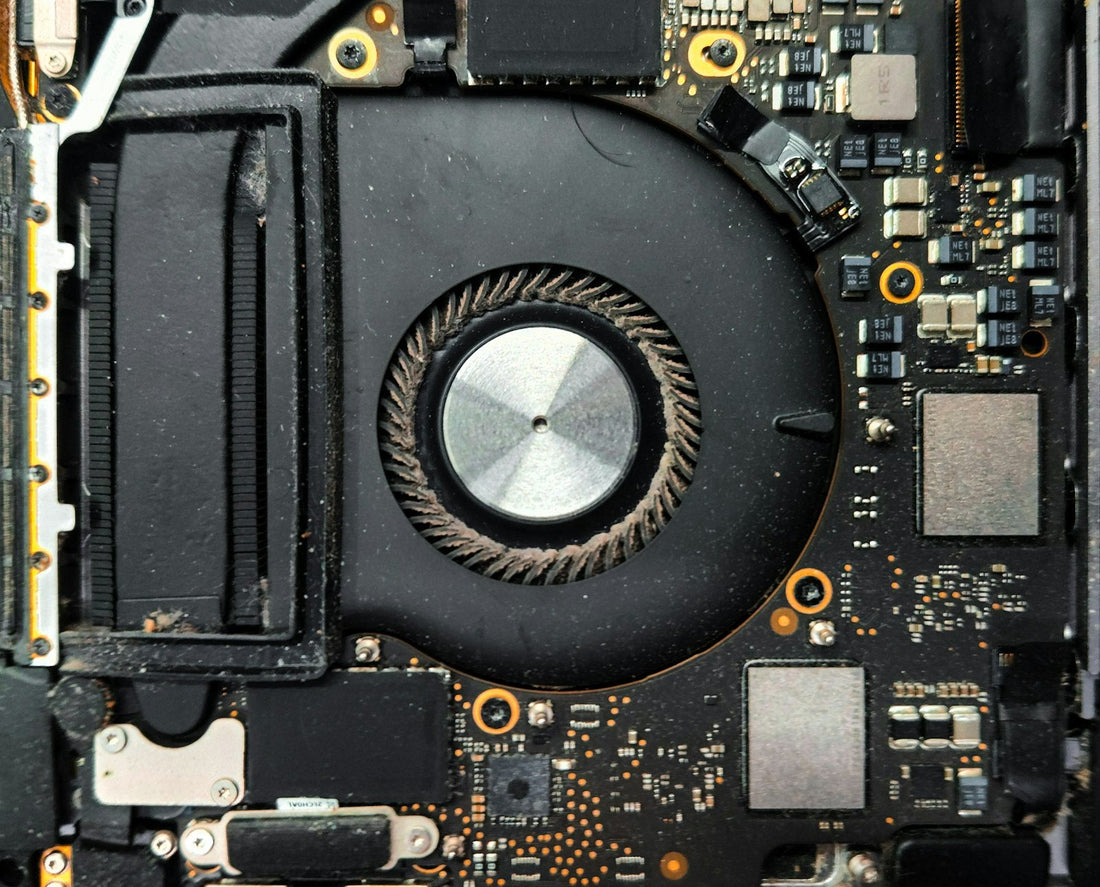
Quick answer: use the laptop on a hard, flat surface, close heavy programs, stop unnecessary apps opening at start-up, free up disk space and install updates. If the fan is still loud, the inside probably needs a professional dust clean.
1. Let it breathe
Laptops pull air in through vents underneath or at the sides. Using one on a bed, sofa or lap blocks them. Use a table, a tray or a laptop stand.
2. Find what’s working it hard
Windows
Press Ctrl + Shift + Esc to open Task Manager. Sort by CPU and Memory and close programs you don’t need.
Mac
Open Activity Monitor (Applications → Utilities). Sort by % CPU.
Browsers
Dozens of open tabs use lots of memory. Close the ones you don’t need.
3. Speed up start-up
- Windows: Task Manager → Startup apps – disable programs you don’t need at start-up.
- Mac: System Settings → General → Login Items.
4. Free up space and update
- Keep at least 15–20% of the drive free.
- Empty the Recycle Bin / Bin and Downloads folder.
- Install Windows Update or macOS updates, then restart.
- Run a scan with your built-in security software (Windows Security on Windows).
5. Clean the vents – carefully
With the laptop switched off and unplugged, give the outside vents a few short puffs of compressed air from a distance. Don’t hold the can upside down, and don’t blast air straight at the fan for long – spinning it too fast can damage it.
Don’t open the laptop yourself. Inside are fragile ribbon cables and, on many models, a battery that can be damaged by screwdrivers.
When it needs a service
- The fan is loud even when the laptop is idle.
- It shuts down by itself when busy.
- It’s several years old and has never been cleaned inside.
- It’s slow even after these steps – an older hard drive upgraded to an SSD can feel like a new laptop.
We clean laptops internally, replace worn fans and thermal paste, and upgrade drives. Bring it in for a free diagnosis.
 Walk in – no appointment
 Home visit in London
 Post it to us
 Fix it yourself
 Fix it yourself