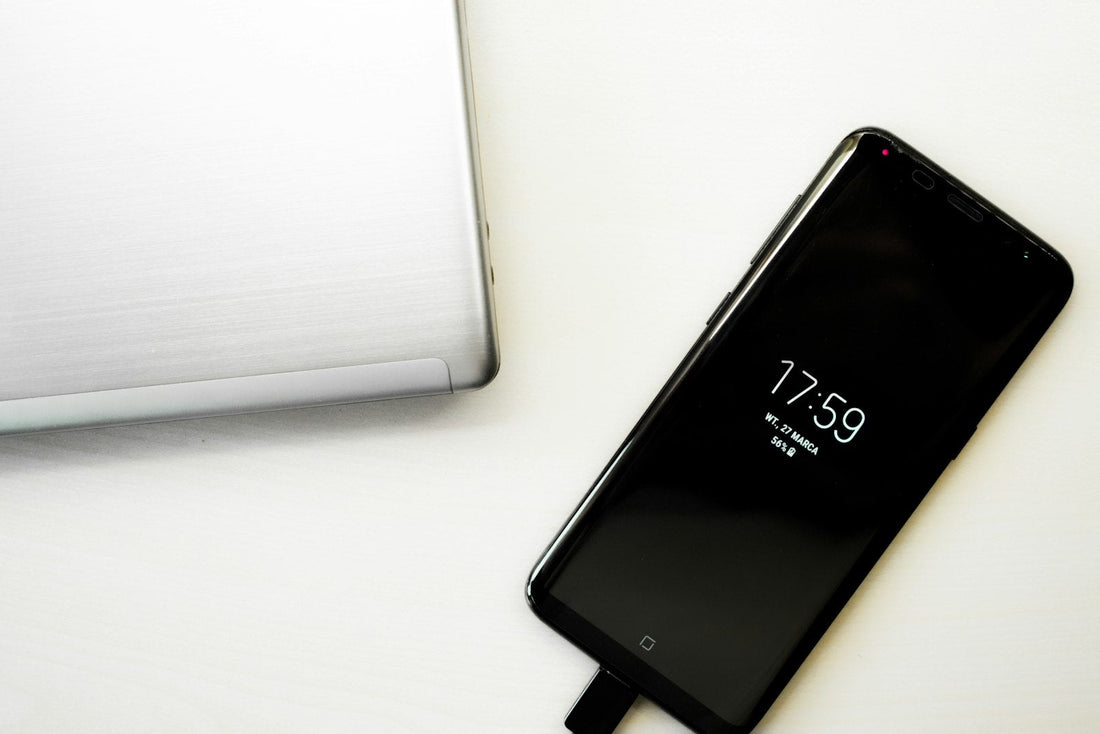
Quick answer: charge both phones, keep them on the same Wi-Fi and side by side, then use the built-in transfer during set-up: Quick Start (iPhone), Smart Switch (Samsung) or Copy apps & data (Pixel).
Before you start
- Charge both phones and connect them to Wi-Fi.
- Update the old phone.
- Back up WhatsApp chats inside the app.
- Make sure you know your Apple Account or Google account password.
- Keep your old phone until you’ve checked everything has moved.
iPhone to iPhone
Turn on the new iPhone and place it next to the old one. Quick Start appears on the old phone – follow the steps and choose Transfer from iPhone. Keep them close together and plugged in until it finishes.
Android to Samsung
Use Smart Switch: during set-up on the new Galaxy, choose to copy data from your old phone, by cable or wirelessly. It moves contacts, messages, photos, apps and many settings.
Android to Pixel
During set-up, choose Copy apps & data and connect the old phone with a cable, or sign in to your Google account to restore from your backup.
Android to iPhone
Install Move to iOS on the Android phone. On the new iPhone’s set-up, choose Move Data from Android and enter the code shown. WhatsApp chats can move during this process too.
iPhone to Android
Samsung’s Smart Switch and Pixel’s set-up can copy from an iPhone by cable. Before you switch, turn off iMessage and FaceTime on the iPhone so your texts don’t get stuck.
Moving away from iPhone? Turn off iMessage in Settings → Apps → Messages before removing your SIM, or texts from iPhone users may not reach you.
Then deal with the old phone
Once everything is on the new phone, get the old one ready to sell – we’ll buy it for cash or credit.
 Walk in – no appointment
 Home visit in London
 Post it to us
 Explained
 Safety first
 Fix it yourself