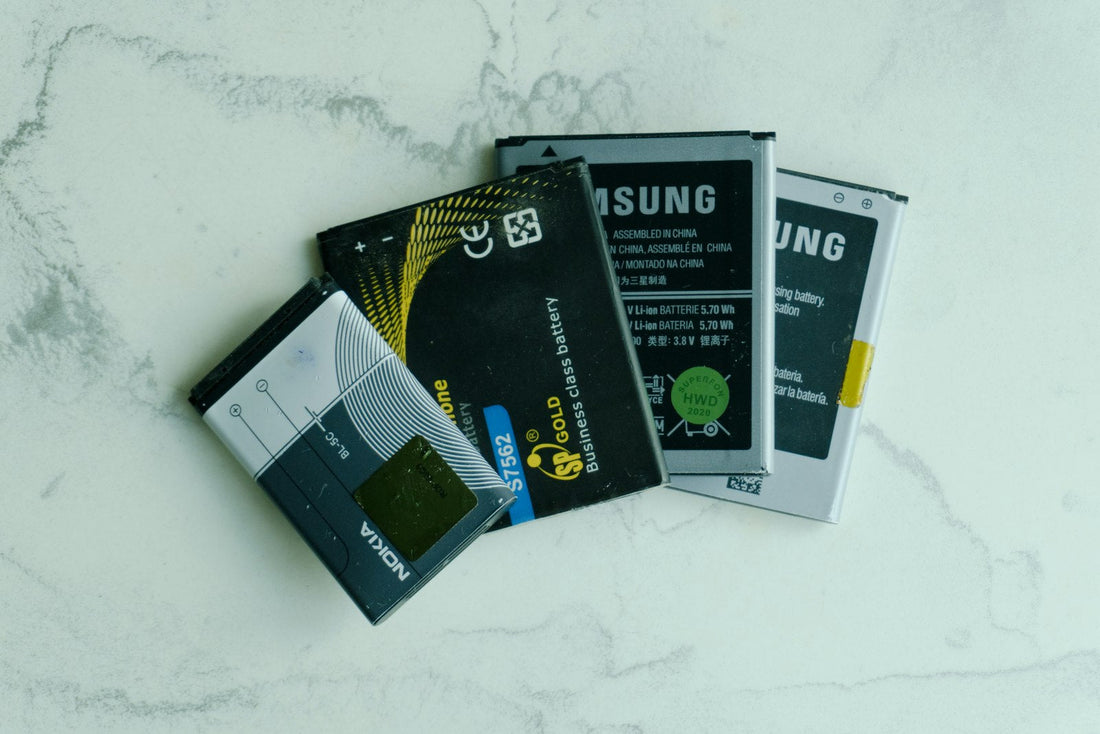
Quick answer: on iPhone, go to Settings → Battery → Battery Health. Around 80% or below, or a message saying the battery needs service, means a new battery will make a real difference.
Why battery health matters
Every phone battery slowly loses capacity as it is charged and used. A battery at 80% health holds roughly four-fifths of what it did when new – so a phone that used to last all day now needs charging by mid-afternoon. Worn batteries can also cause sudden shut-downs and a slower phone.
iPhone
- Open Settings → Battery.
- Tap Battery Health (called Battery Health & Charging on some versions).
- Check Maximum Capacity. iPhone 15 and later also show the cycle count in Settings → General → About.
- If you see “Service” or a message about an unknown part or significantly degraded battery, the battery should be replaced.
Samsung Galaxy
- Open the Samsung Members app (it’s pre-installed).
- Tap Support, then Phone diagnostics.
- Tap Battery status. It shows the battery’s life as Good, Normal or Weak.
- On newer Galaxy models you may also find battery information in Settings → Battery.
Google Pixel
- Open Settings → Battery → Battery health. This is available on Pixel 8a and newer.
- On older Pixels there is no built-in percentage – watch for sudden drops and shut-downs instead, or ask us to test it.
What the numbers mean
| Battery health | What to expect |
|---|---|
| 90–100% | Like new. Battery problems are probably settings or apps – see battery draining fast. |
| 80–89% | Noticeably shorter battery life, but still usable. |
| Below 80% | Worn. Expect short battery life, slowdowns and possible shut-downs. A replacement is worth it. |
We can test your battery in the shop in a few minutes, on any phone – including Android models with no built-in battery health screen.
 Walk in – no appointment
 Home visit in London
 Post it to us
 Explained
 Fix it yourself
 Fix it yourself