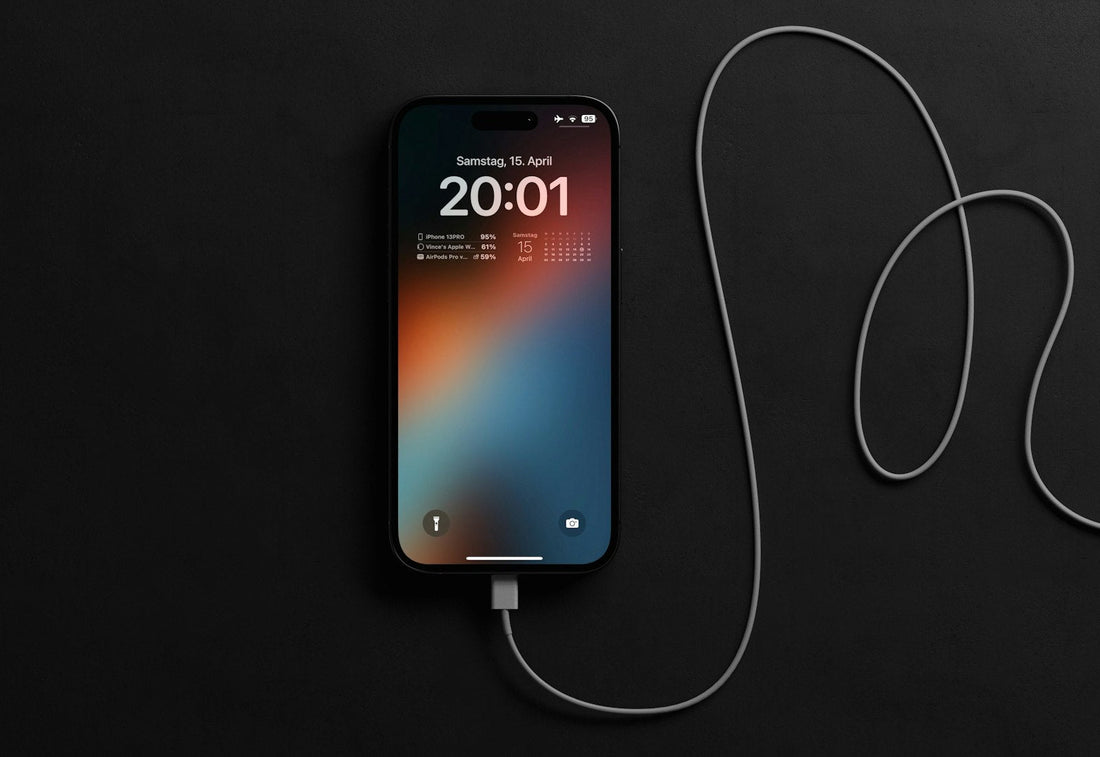
Quick answer: try a different cable and plug, restart the phone, then check the charging port for fluff with a torch. Those three checks fix most phones that “won’t charge”.
1. Rule out the cable and plug
Cables fail long before phones do – usually at the bend near the connector, where you can’t see the damage. Plugs can also fail or be too weak to charge a modern phone.
- Try a different cable that you know works with another phone.
- Try a different plug, or plug the cable into a laptop’s USB port instead.
- Try a different wall socket – not an extension lead or a car charger.
If your cable is frayed, bent, scorched or the connector is loose, stop using it. Damaged cables can overheat.
2. Restart the phone
Sometimes the software that controls charging freezes, so the phone ignores the charger. A restart clears this.
iPhone
Press and release volume up, then volume down, then hold the side button until you see the Apple logo.
Samsung
Hold the side button and volume down together for about 10 seconds until it restarts.
Google Pixel
Hold the power button for about 30 seconds until the phone restarts.
3. Look inside the charging port
Pockets and bags pack fluff into the port a little at a time. Eventually the cable can’t push in fully, so it charges only at an angle – or not at all.
- Turn the phone off.
- Shine a torch into the port. Look for grey fluff packed at the back.
- If the cable feels loose or doesn’t “click” in, the port probably needs cleaning. Follow our safe charging-port cleaning guide.

4. Check for a moisture warning
If your phone shows a “Liquid detected” (iPhone) or “Moisture detected” (Samsung) message, it blocks wired charging on purpose to protect the phone. Unplug it, let the port dry and read what the moisture warning means.
5. Let a very flat battery wake up
A battery that has been completely flat for days can take a while to respond. Leave it on a known-good charger for at least 30 minutes before deciding it’s dead. If you see a red or empty battery icon, it is charging – leave it.
6. Is the phone too hot or too cold?
Phones pause charging when they are too hot (for example in the sun or under a pillow) or very cold. Move it somewhere at room temperature, take it out of a thick case and try again after 15 minutes.
When it’s time for a repair
- Different cables and plugs all fail, and the port looks clean.
- It charges only if you hold the cable at an angle.
- It charges wirelessly but not with a cable – a sign the port itself is worn.
- The battery drops from 30% to 0% suddenly, or the phone switches off with charge left – see battery replacement explained.
Bring it in and we’ll test the port, cable and battery free. If it just needs cleaning, we’ll tell you – you won’t pay for a part you don’t need.
 Walk in – no appointment
 Home visit in London
 Post it to us
 Explained
 Fix it yourself
 Fix it yourself