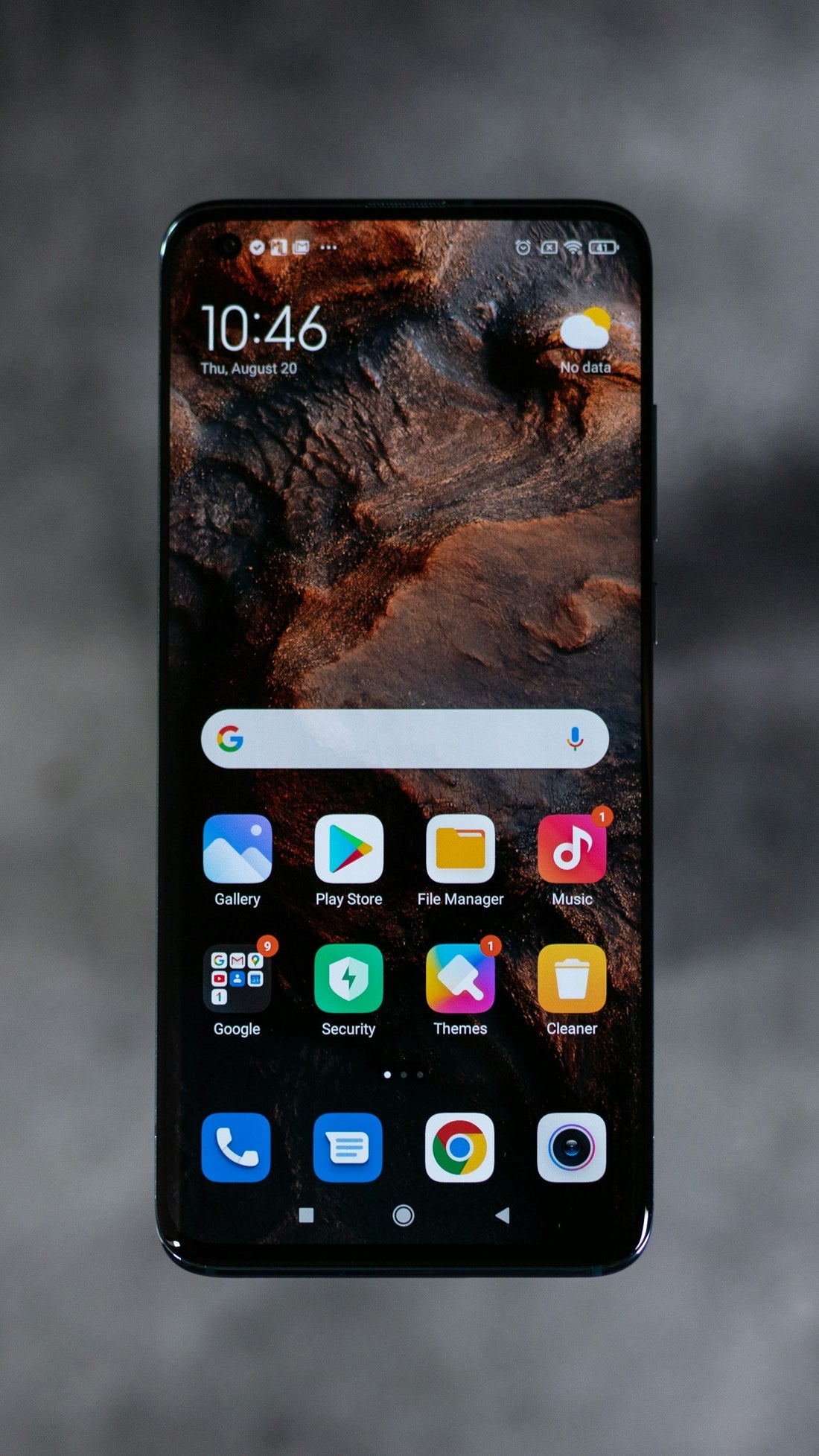
Quick answer: take a screenshot. If the lines or tint show up in the screenshot, it’s software – restart and update. If the screenshot looks normal, the problem is in the screen itself.
The screenshot test
A screenshot captures what the phone is sending to the screen. Open the screenshot on another device (or send it to yourself):
- Problem visible in the screenshot: software or an app is causing it. Keep reading.
- Screenshot looks fine: the display hardware is faulty – usually from a drop, pressure or moisture.
Software fixes
- Force restart the phone (how to).
- Install the latest software update.
- Turn off display effects one at a time: Night Shift / Eye comfort shield / Night Light, colour filters, and dark-mode schedules.
- Check if it only happens in one app – if so, update or reinstall that app.
- Lower the refresh rate to test: Samsung Settings → Display → Motion smoothness → Standard; Pixel Settings → Display → Smooth Display off.
Signs of a hardware fault
- A single bright green, pink or white vertical line that never moves.
- A green tint that is worse at low brightness.
- Black spots or “ink blots” that spread over days.
- Flickering that changes when you gently flex or press the phone.
These don’t heal and usually get worse. Back up now and see screen replacement explained.
A spreading black patch after a drop means the display layer is leaking. The phone may soon have no usable screen – back up while you can still see it.
 Walk in – no appointment
 Home visit in London
 Post it to us
 Explained
 Fix it yourself
 Fix it yourself